> ## Documentation Index
> Fetch the complete documentation index at: https://invopop-zatca-valid-identities.mintlify.site/llms.txt
> Use this file to discover all available pages before exploring further.
# Add a billing account
> Create and configure a billing account for subscriptions, invoices, and payment methods.
Billing accounts are used to associate workspaces with a specific payment method and tax information. Most companies will need to create a single billing account for all their workspaces, but if you need to use different payment methods or tax information for different workspaces, you can create multiple billing accounts.
## Billing accounts list
All accounts start with a free sandbox billing account. This gives access to sandbox functionality and allows you to keep track of the pops usage of your sandbox workspaces.
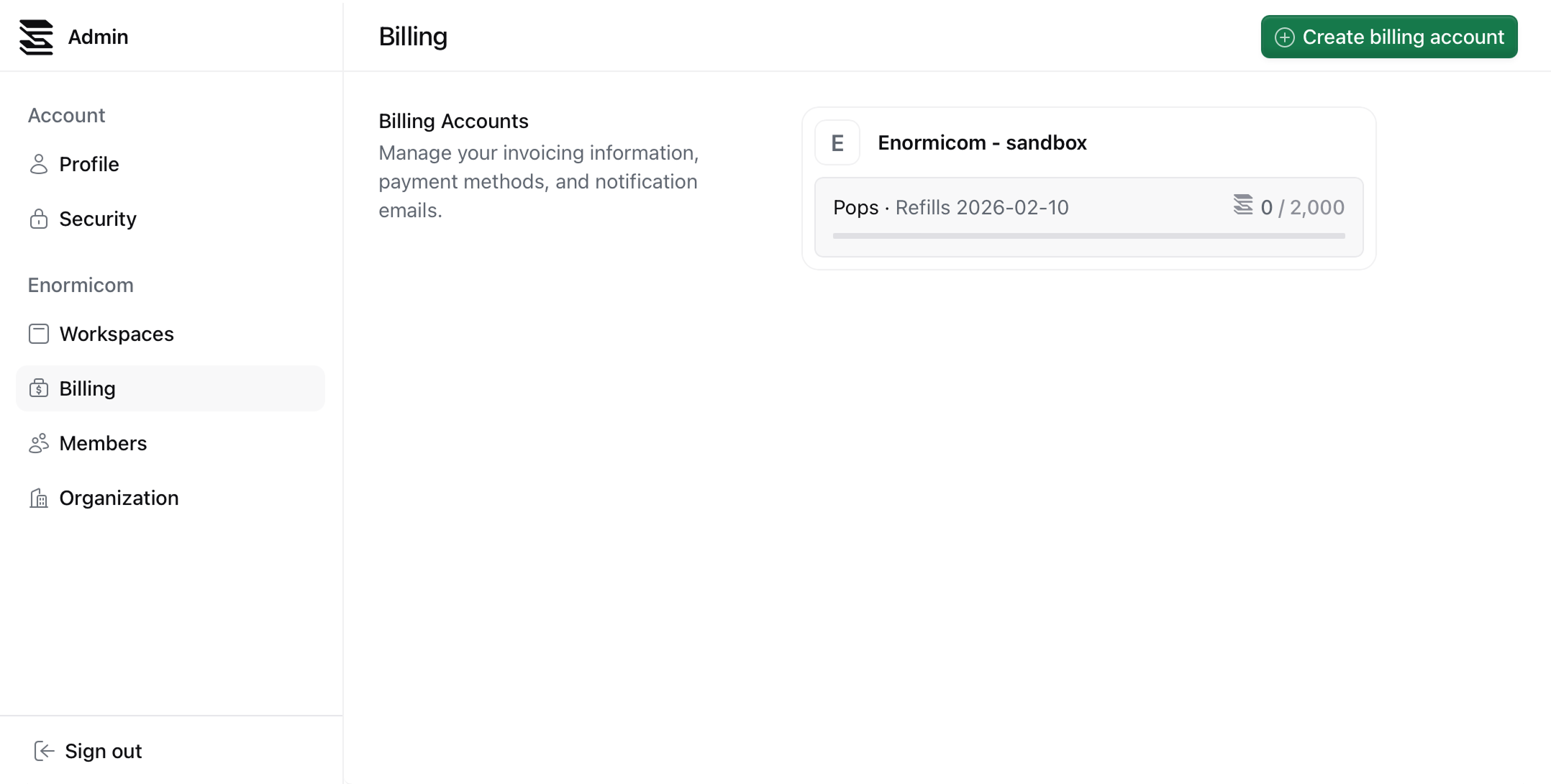 In order to have live workspaces, you need to create a live billing account. This will give access to live functionality and allow you to issue real invoices.
## Create a billing account
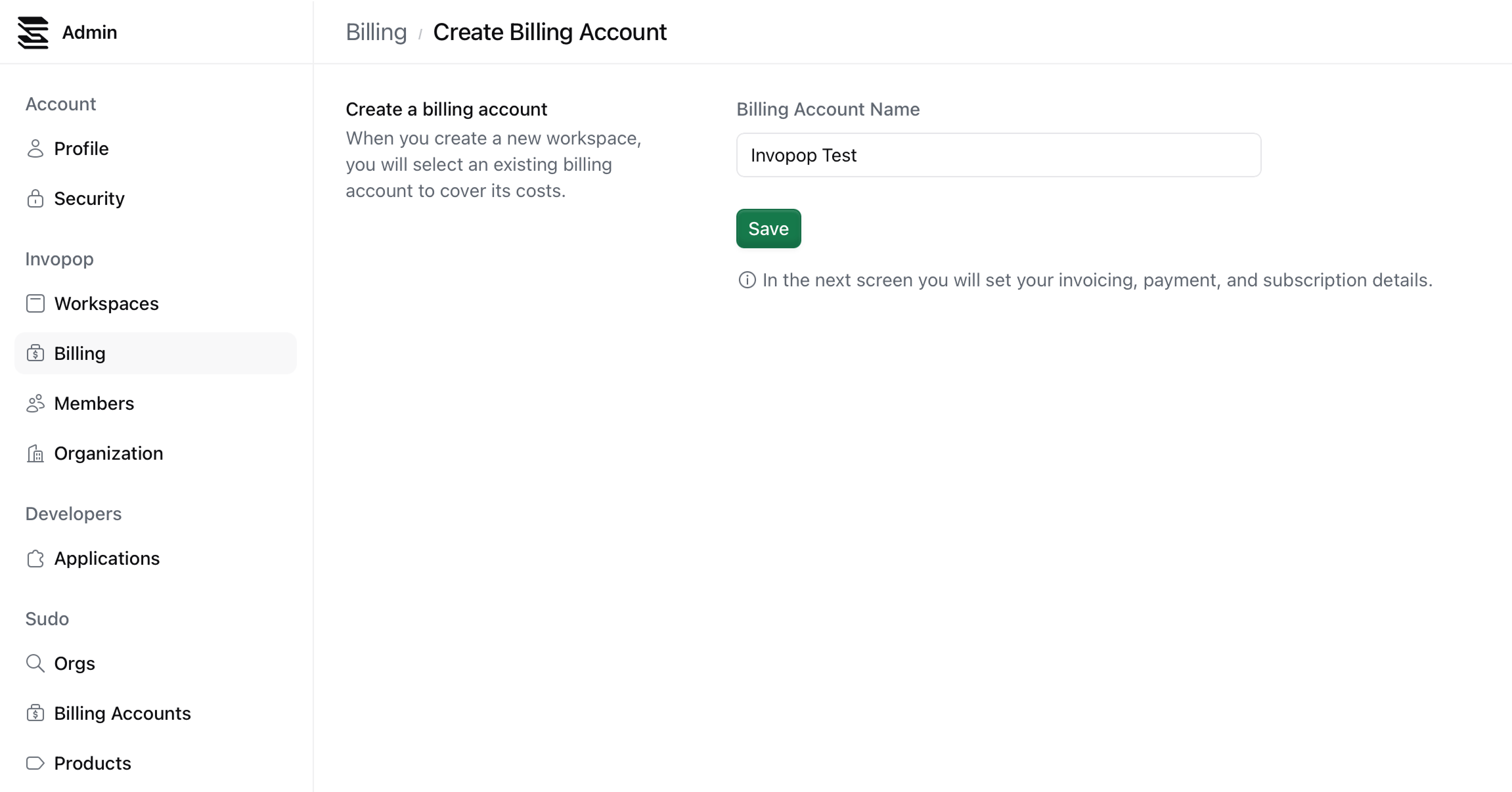
To create a billing account, click on the Create billing account button in the top right corner of the billing page. You will be prompted to name the account. We recommend naming the account after your company or organization + "billing" or "account".
In order to have live workspaces, you need to create a live billing account. This will give access to live functionality and allow you to issue real invoices.
## Create a billing account
To create a billing account, click on the Create billing account button in the top right corner of the billing page. You will be prompted to name the account. We recommend naming the account after your company or organization + "billing" or "account".
 ## Add your invoicing information
Introduce your tax information and click on Save.
## Add your invoicing information
Introduce your tax information and click on Save.
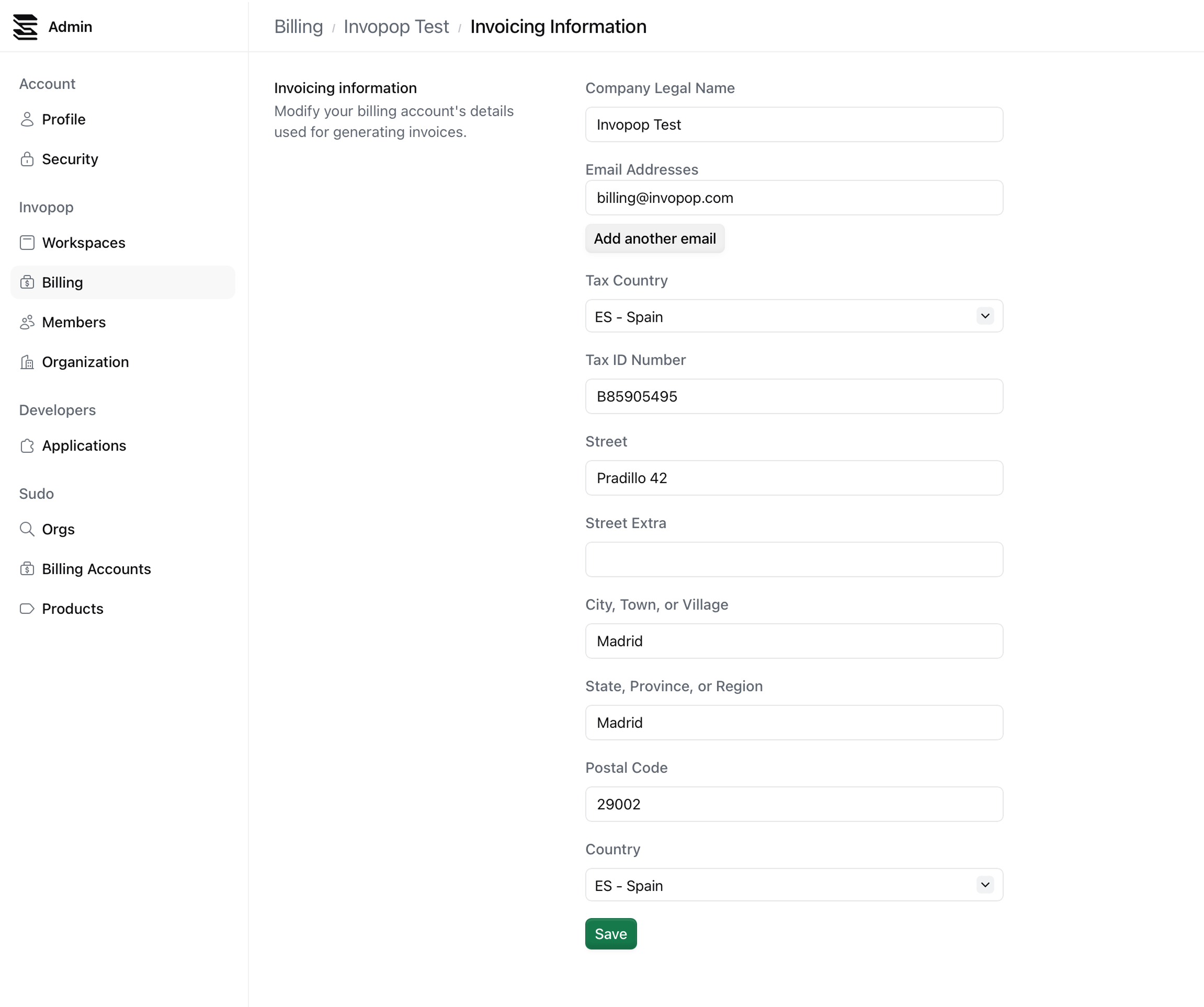 Introducing your tax information will allow Invopop to issue invoices for our services.
## Add a payment method
Click on the Add payment method button to add a payment method to your billing account. You will be redirected to a Stripe page to add your payment method.
Introducing your tax information will allow Invopop to issue invoices for our services.
## Add a payment method
Click on the Add payment method button to add a payment method to your billing account. You will be redirected to a Stripe page to add your payment method.
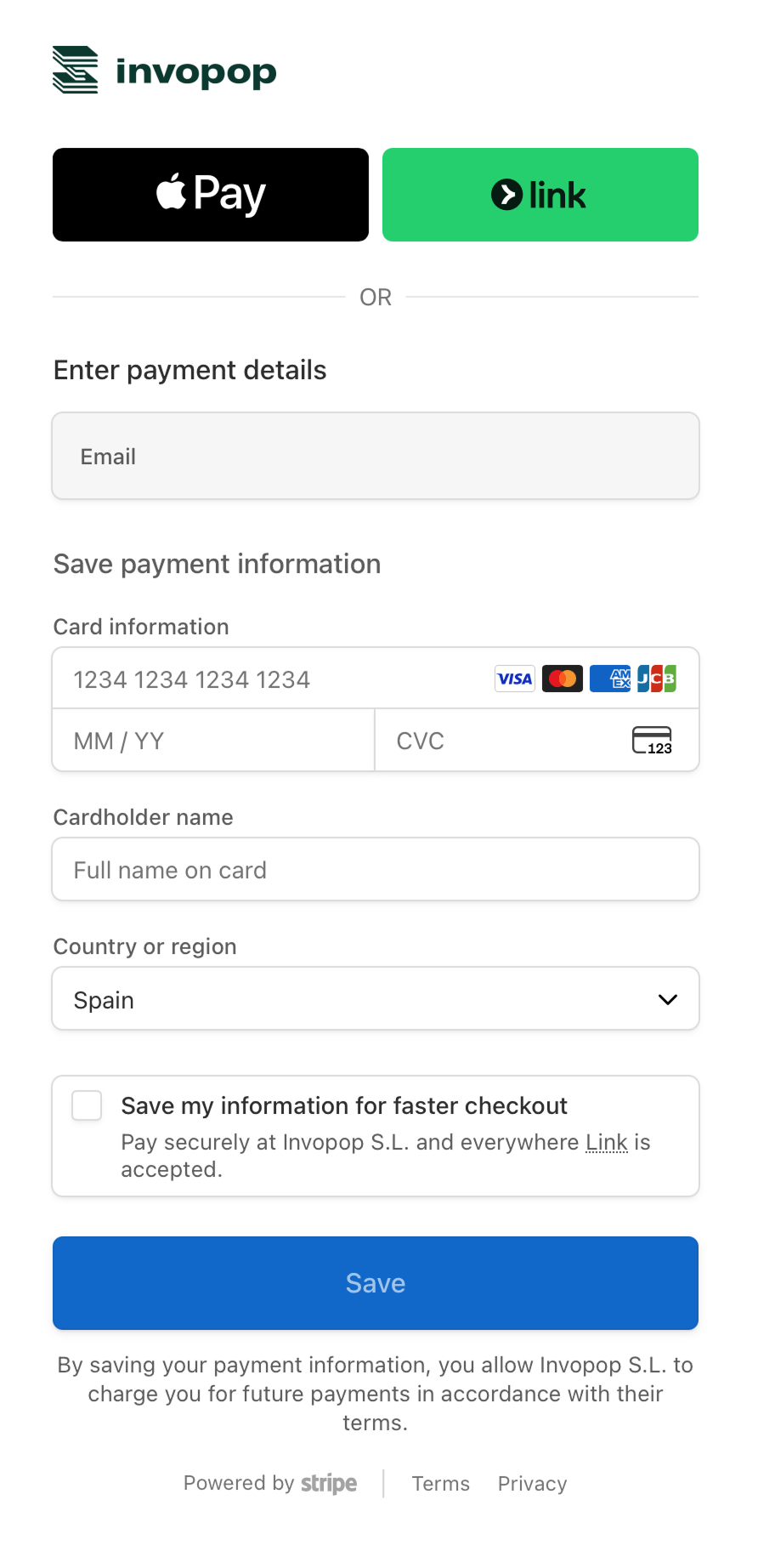 Once you have added your payment method, you will be redirected back to the billing account page.
## Select a subscription plan
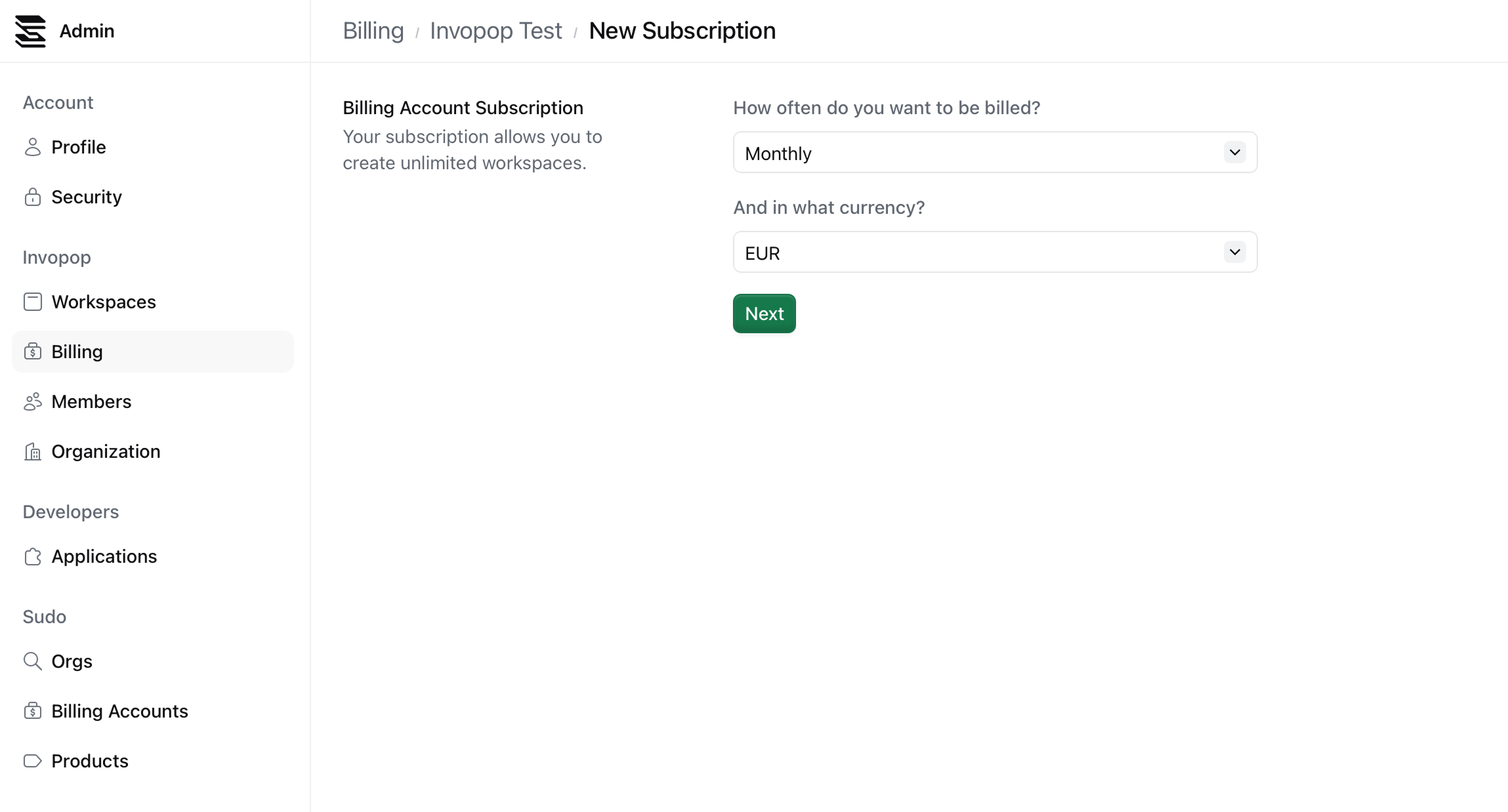
Click on the Select subscription button to select a subscription plan for your billing account. You will be select a payment frequency and currency.
Once you have added your payment method, you will be redirected back to the billing account page.
## Select a subscription plan
Click on the Select subscription button to select a subscription plan for your billing account. You will be select a payment frequency and currency.
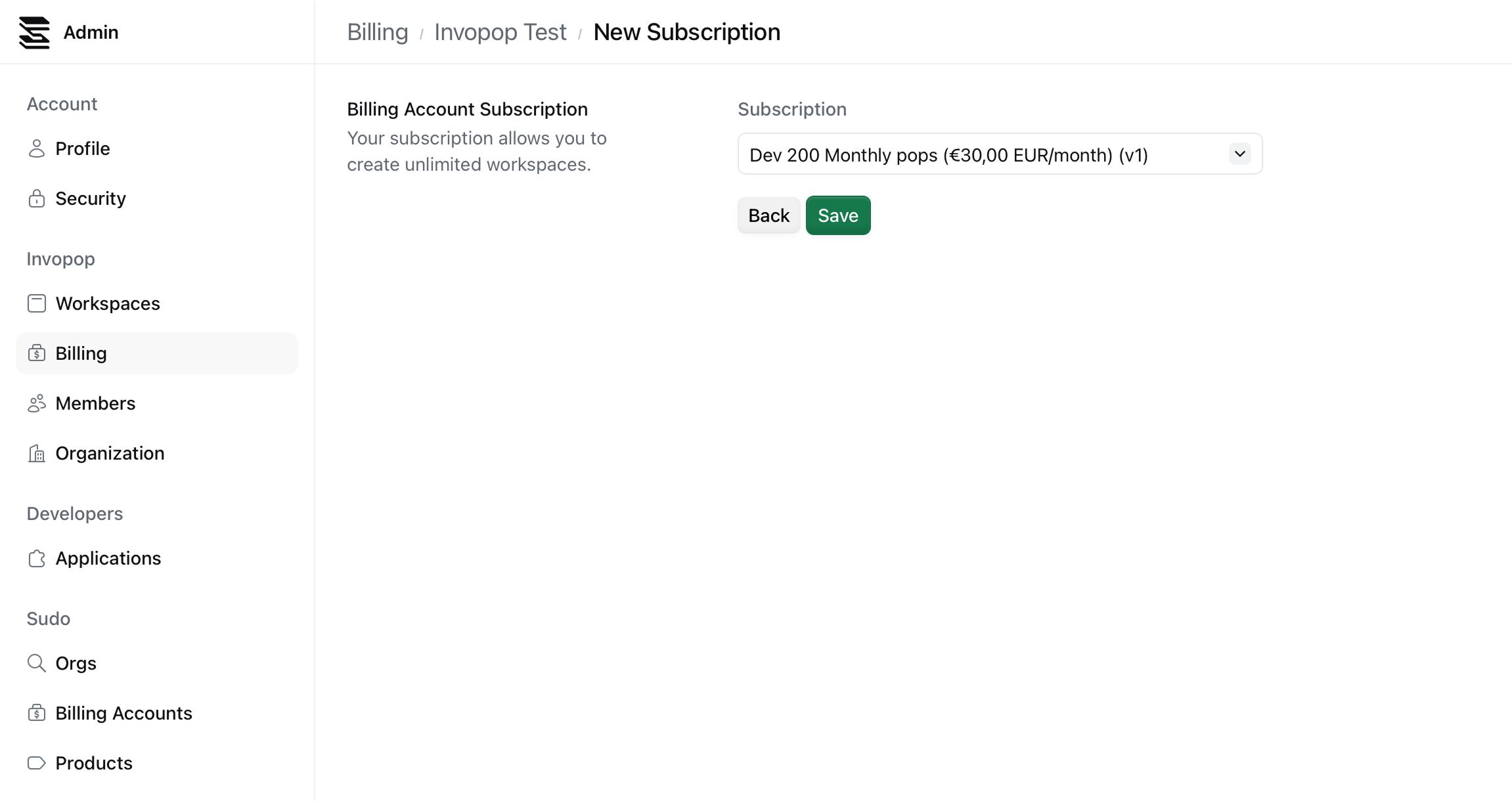
 On the next screen you will be able to select a subscription plan.
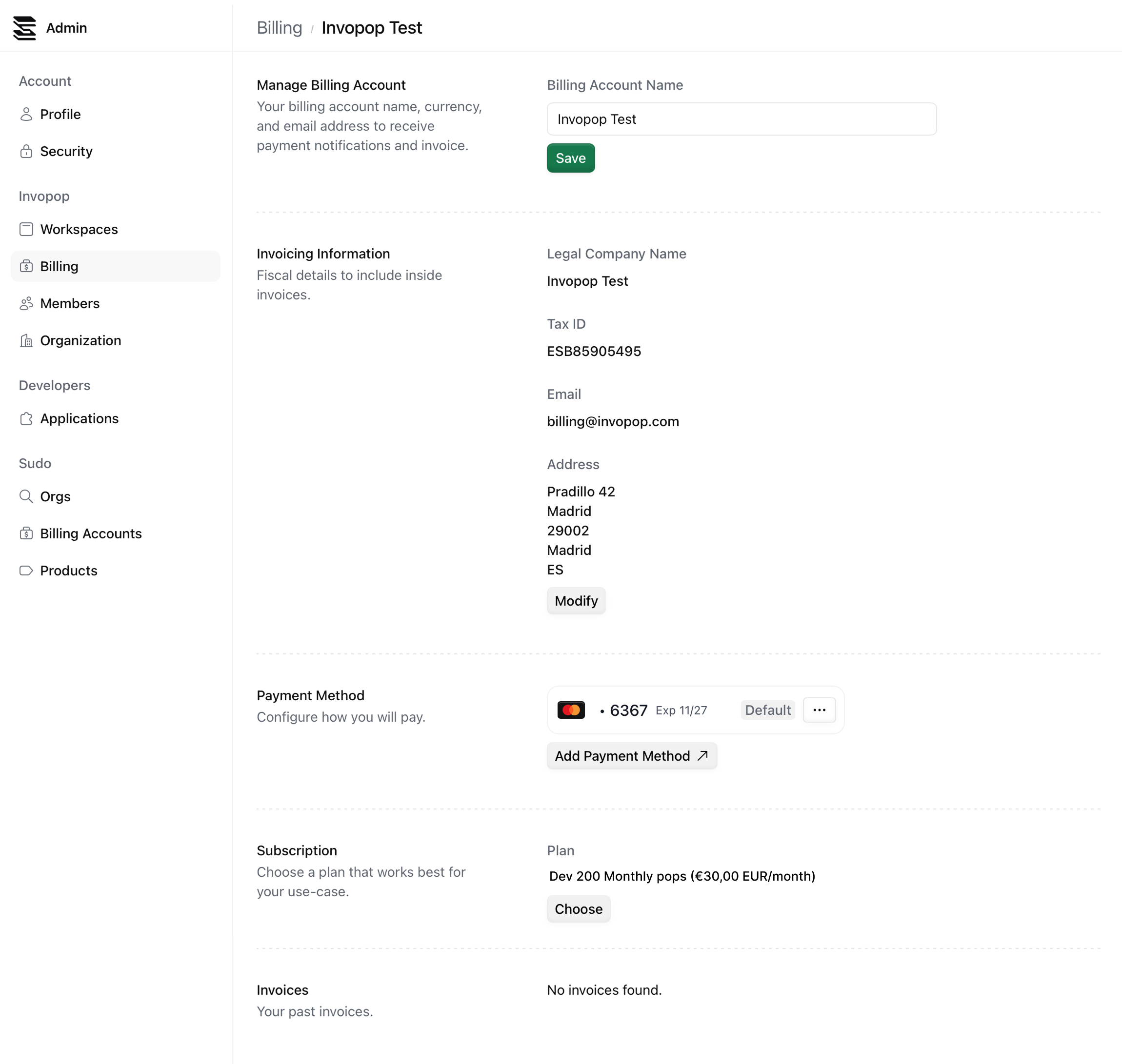
 Once you have completed the subscription process, you will be able to create live workspaces.
 ## FAQ
Get in touch with us at [support@invopop.com](mailto:support@invopop.com), and unless we detect abnormal usage, we will extend your sandbox billing account with additional pops.
This option is only available for Enterprise plans.
## FAQ
Get in touch with us at [support@invopop.com](mailto:support@invopop.com), and unless we detect abnormal usage, we will extend your sandbox billing account with additional pops.
This option is only available for Enterprise plans.